There’s a slew of videos on TikTok that poke fun at millennials who initially avoided the app but ended up becoming obsessed with it just like everyone else. These videos usually feature a Gen-Z character who welcomes the millennial with an “I told you so” face.
Well, I must admit that TikTok’s dance challenges and hilarious spoofs have baited me to sign up for the platform as well. After a few months on the app, let me tell you this: It’s not so much a trap as it is a haven. I find myself scrolling through that ingenious blackhole-style interface for three hours or more, just watching videos and fooling around by filming a few myself. So. Fun.
Getting the hang of using the app wasn’t easy, though, and like all things, it takes practice. If you’re a fellow millennial who has given into installing TikTok but doesn’t know where to start, don’t worry, I’ve got you covered. Here’s a quick rundown of how to film a simple video:
Follow users, browse through videos.
TikTok is available for download on the App Store and Google Play Store.

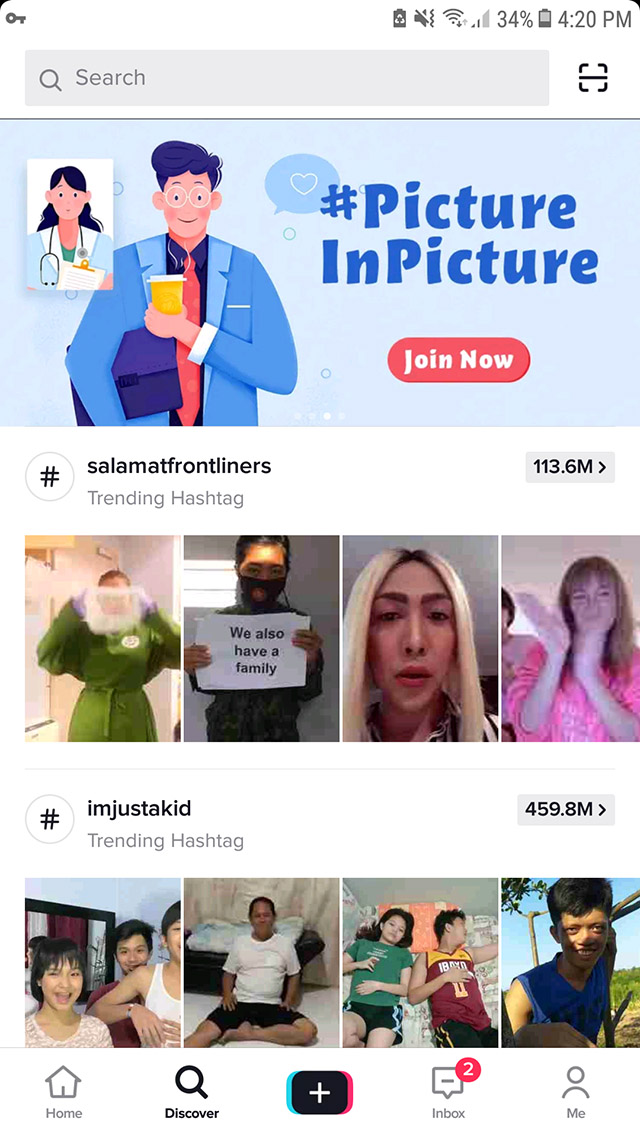
Once you’ve downloaded it, you can start browsing through videos on the landing page or follow users. You can also use the discovery section to search for song titles, videos, and hashtags. Just explore and see what kind of content you like.
Select a song or choose an effect.
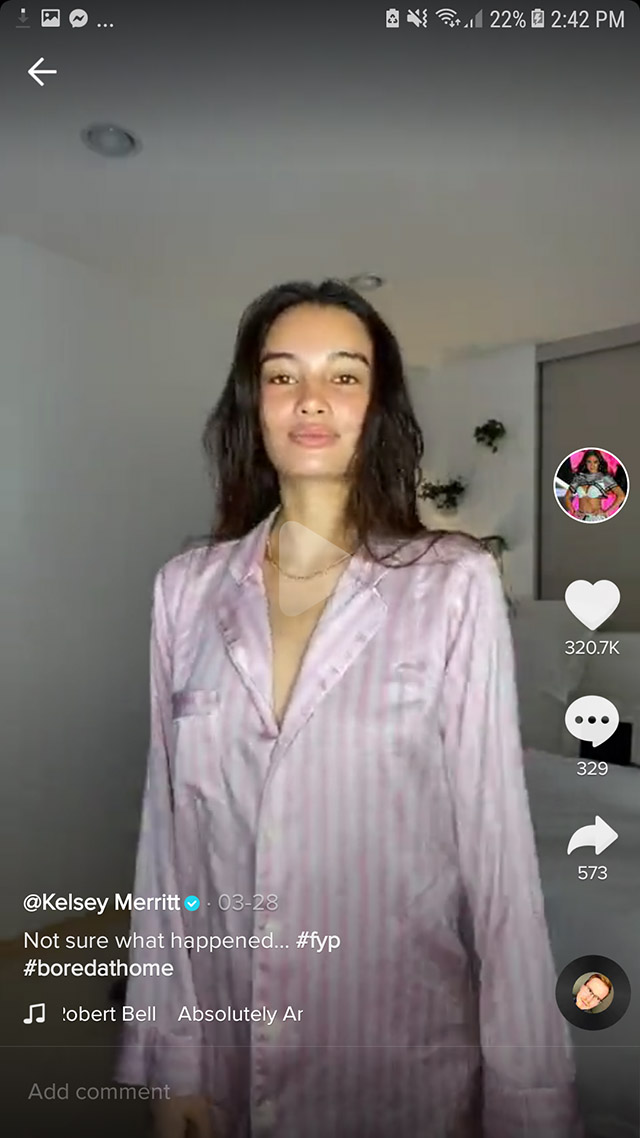
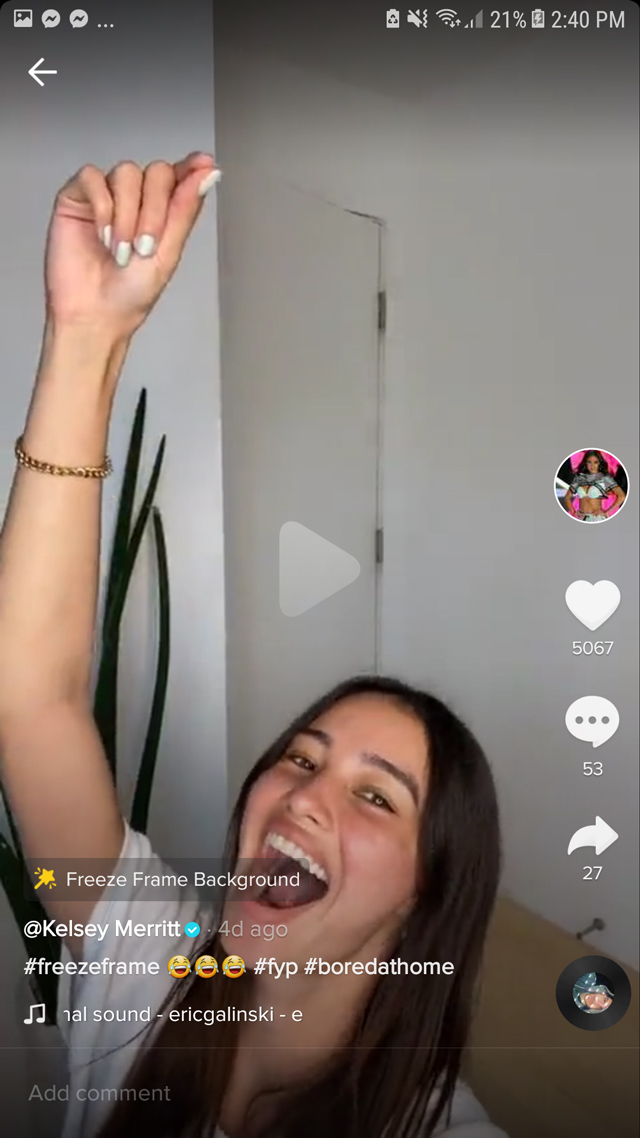
If you stumble upon a video with a song you’d like to use, simply click the title of the song in the bottom or the spinning record logo, as seen below.
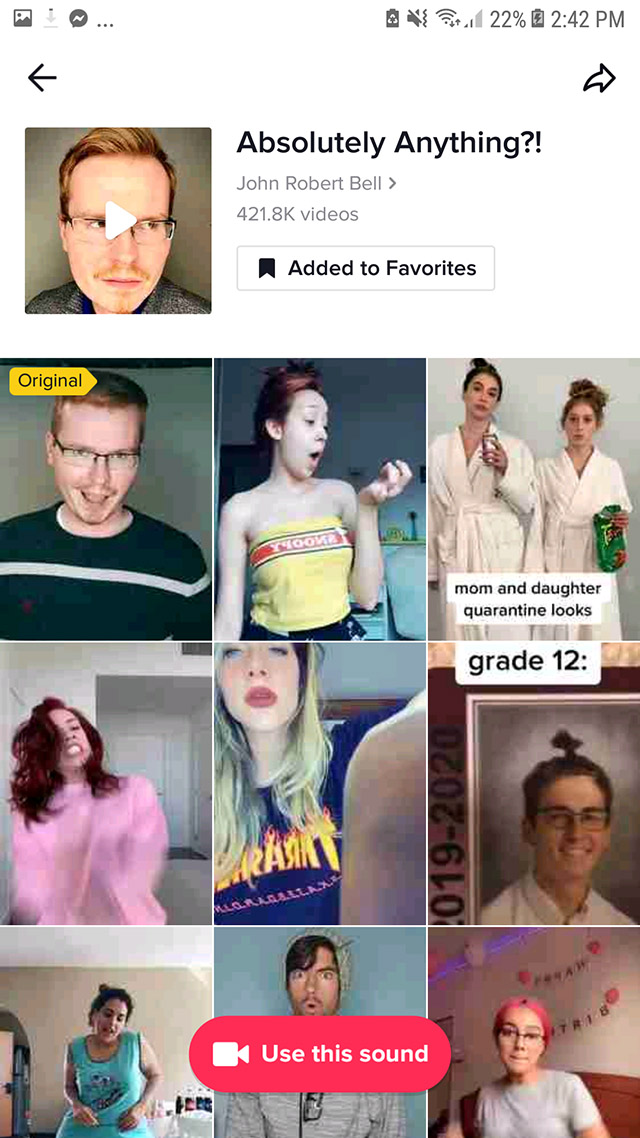
It will lead you to another page with videos that have used the same song. Hit “Use this sound” if you’re decided. If not, you can always save it for later by clicking “Add to Favorites.”
If the user also utilized a TikTok effect, the name of that effect will be indicated in the video and you can select that if you want to use it.
Start filming!
Once you’ve selected a song, it will lead you to the app’s video camera where you can film and edit your videos. On the righthand side, you will find settings like filters, beautify adjustments, the timer, and the trimming tool. The timer will be your best friend.
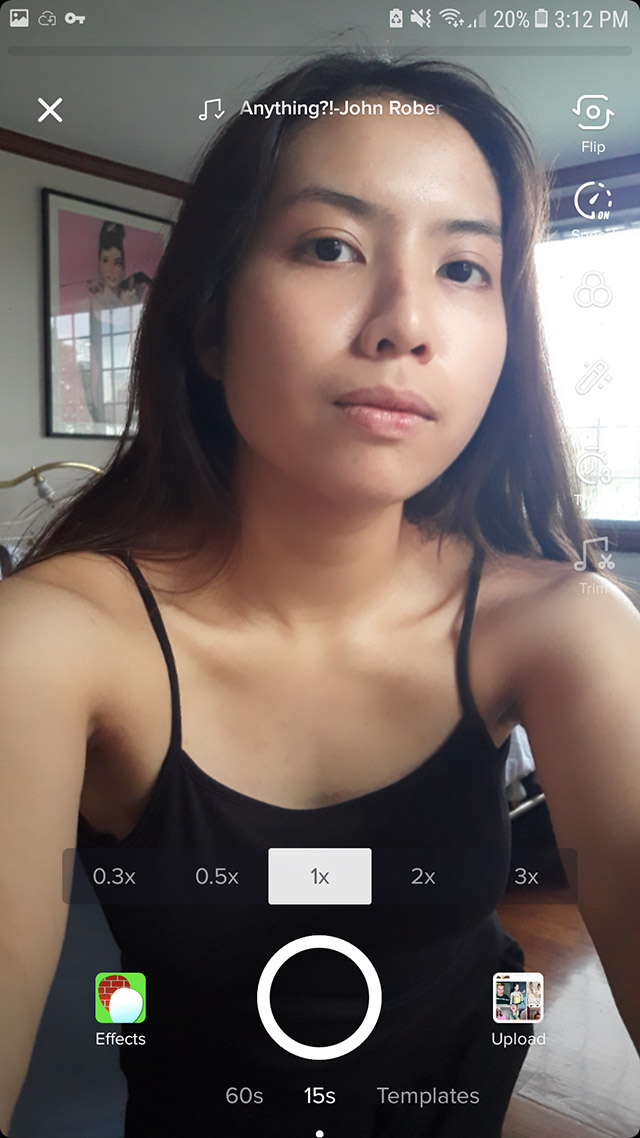
In the bottom, right above the recording button, you’ll find the speed settings. This is how TikTokers get to move as if they were put on fast-forward. You can also slow down your movements if you wish.
You can select the duration of your video at the bottom. Although you can choose between 15 seconds and 60 seconds, it also depends on the length of your chosen song. In this example, my song only lasts for 9 seconds, so that’s totally fine.
If you want to use effects, you can access this on the lower left.
Using the timer
What gives TikTok videos its mindblowing effect is when videos are segmented into various frames with smooth transitions—very tricky at first but it can be perfected!
Before filming your video, you must create a plan. Know when to make your transitions, and how you want your acting to be like. For this video, the concept is “changing outfits in the morning before finding the right one,” so I made sure my acting portrayed that.
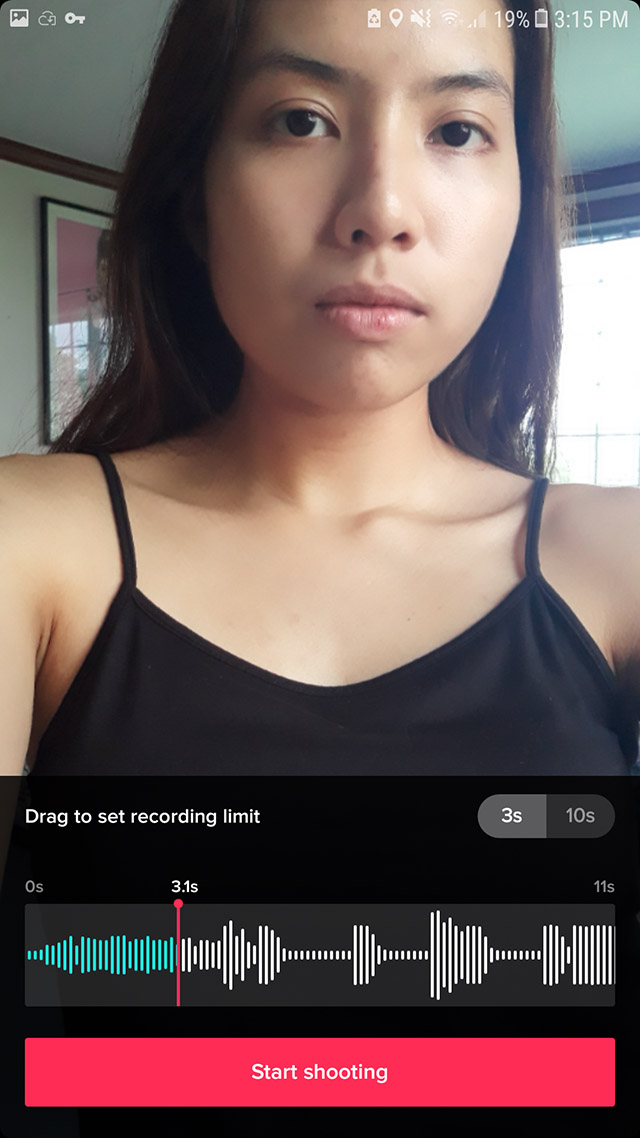
Once you know what your first scene will be, drag the marker up to the timestamp where you want it to end. This step is crucial because good transitions rely on good timing. Listen to the song well.
If you need time to position yourself, you have 3-second and 10-second timer options. I recommend the 10-second one just to be sure!
Filming the next scene
If you’re not satisfied with the clip, you can always re-do it by clicking on the white arrow marked with an ‘X,’ which is found at the bottom right. You can also review the clip by clicking on the red checkmark, as seen below.
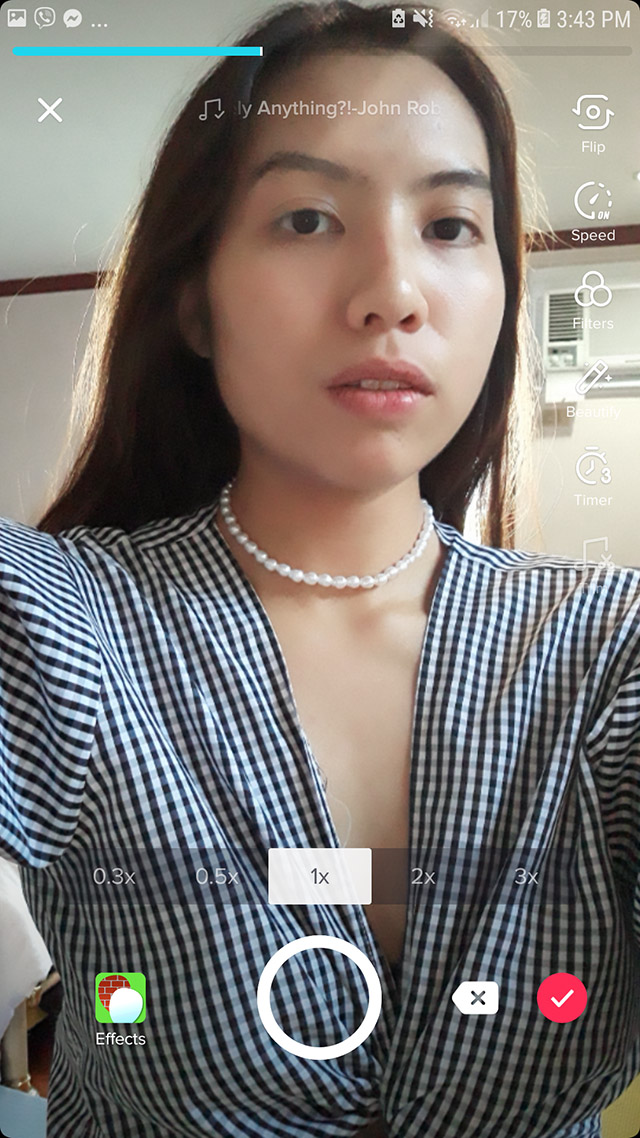
If you’re ready to move forward, just continue filming as in the previous steps (mark the timestamp and set the timer!). Note that once you’ve filmed more than one scene, you can only delete the last scene and not the previous ones. This is why planning ahead of production is important!
Editing
Once you’ve filmed all your scenes (congratulations!), make sure you hit the red checkmark to save your work. This will lead you to the editing features. Note that you can always edit throughout the filming. However, I personally find it better to do so afterward, but maybe that’s because I don’t use many effects.
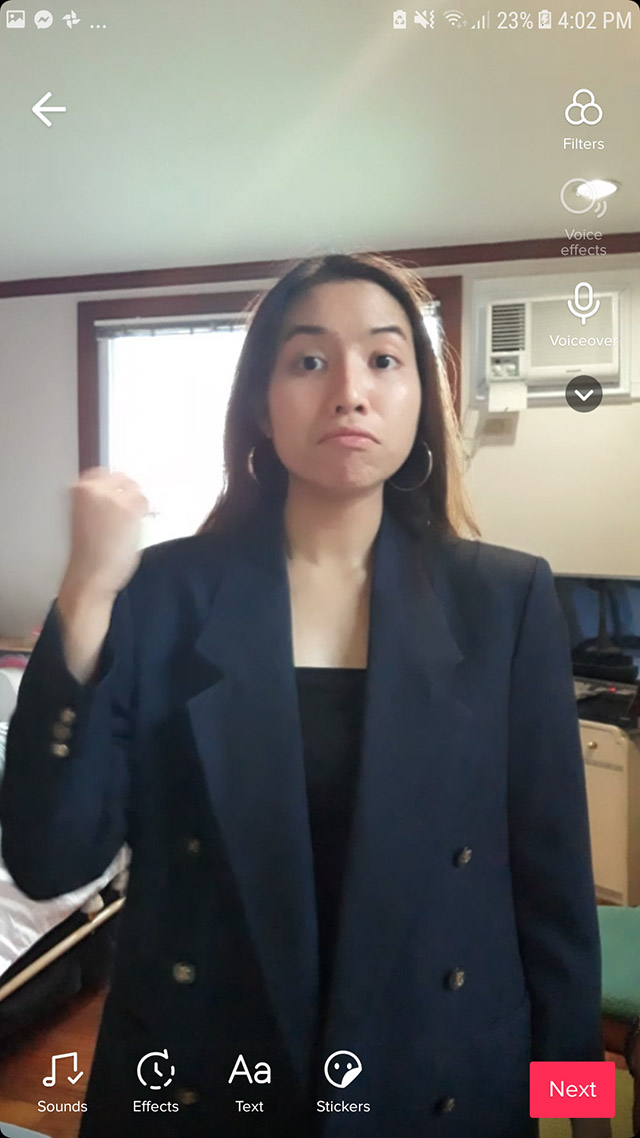
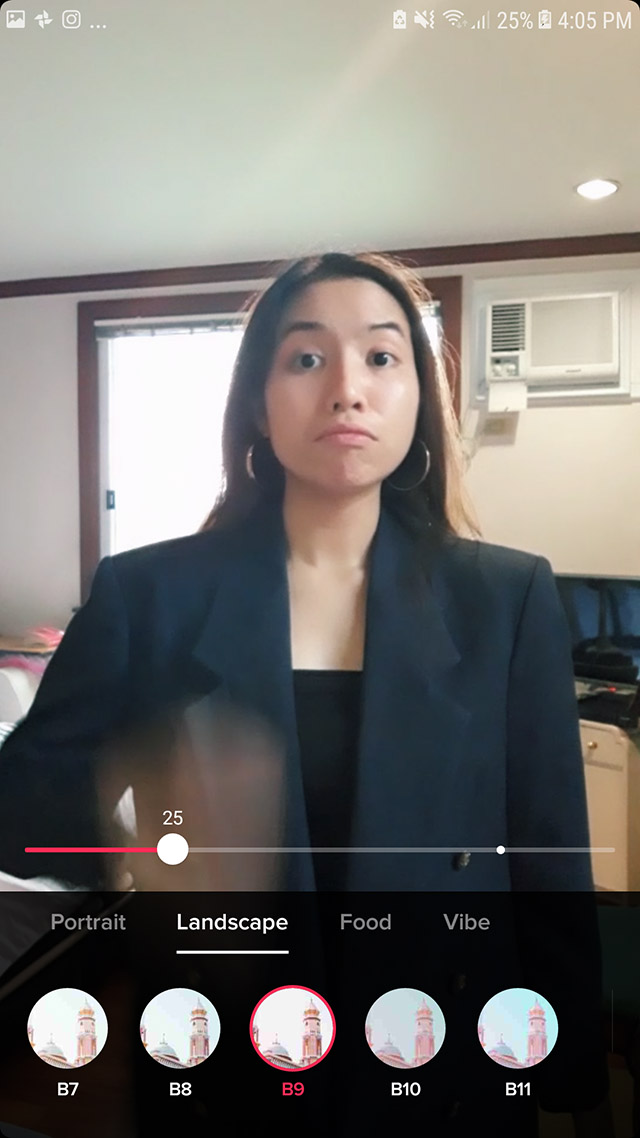
In the editing space, you’ll still be able to see the filters on the righthand side—yes, you don’t have to commit to a filter before filming.
If you want to add cool visual effects aside from filters (like that iconic TikTok glitch effect), you can do that by clicking on the “Effects” button.
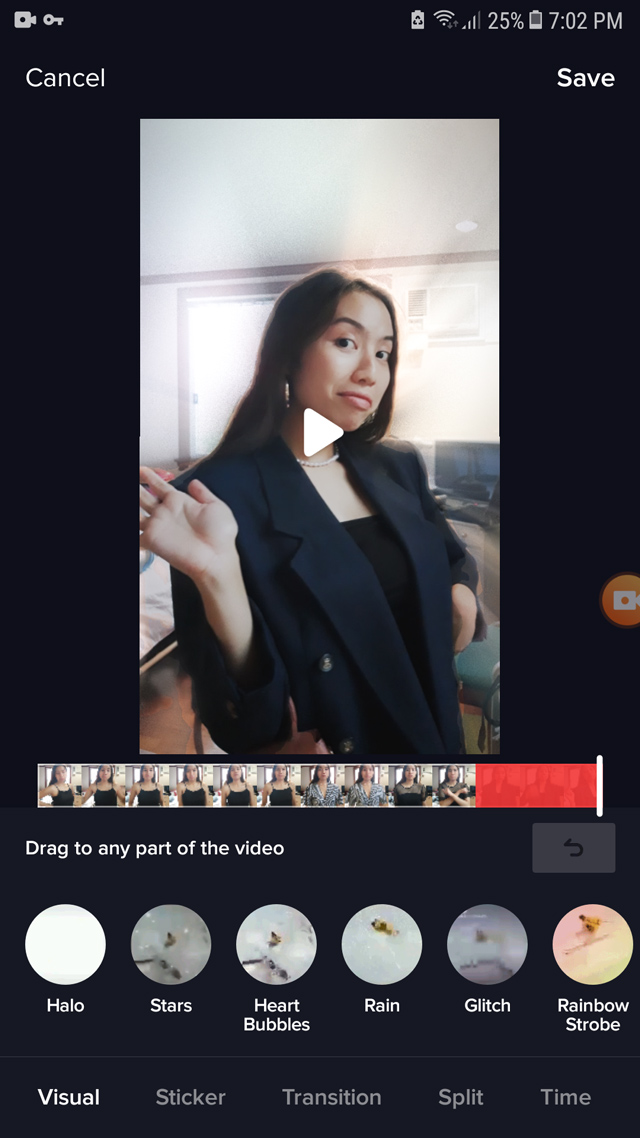
In this space, you can easily apply visual effects, stickers, and transitions, to any part of your video. You can lengthen the duration of your effect by doing a long press or by clicking the button numerous times. For my video, I added the Halo effect in the final scene, as seen above.
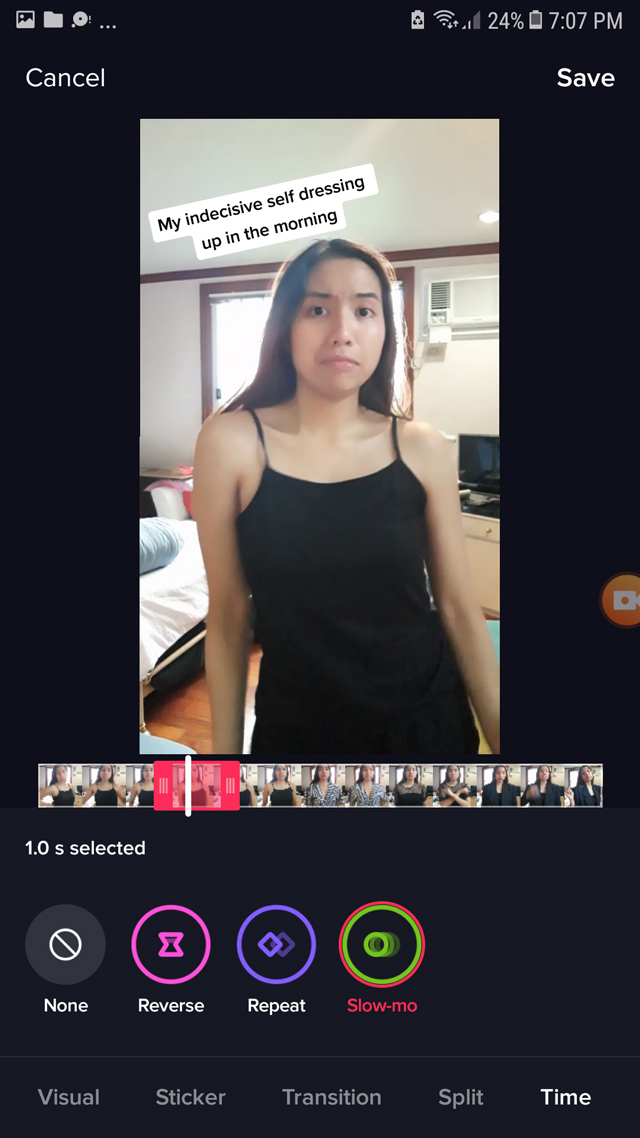
If there are parts you wish to do in reverse time or in slow motion, you can do this under the “Time” section.
Adding text
Adding blurbs to your video makes it easier for viewers to know what your video is about at a glance. It really draws attention! You can select fonts and colors, as well as adjust the duration of the text’s appearance.

Saving your work
When you’re through, hit “Next” to save your work.
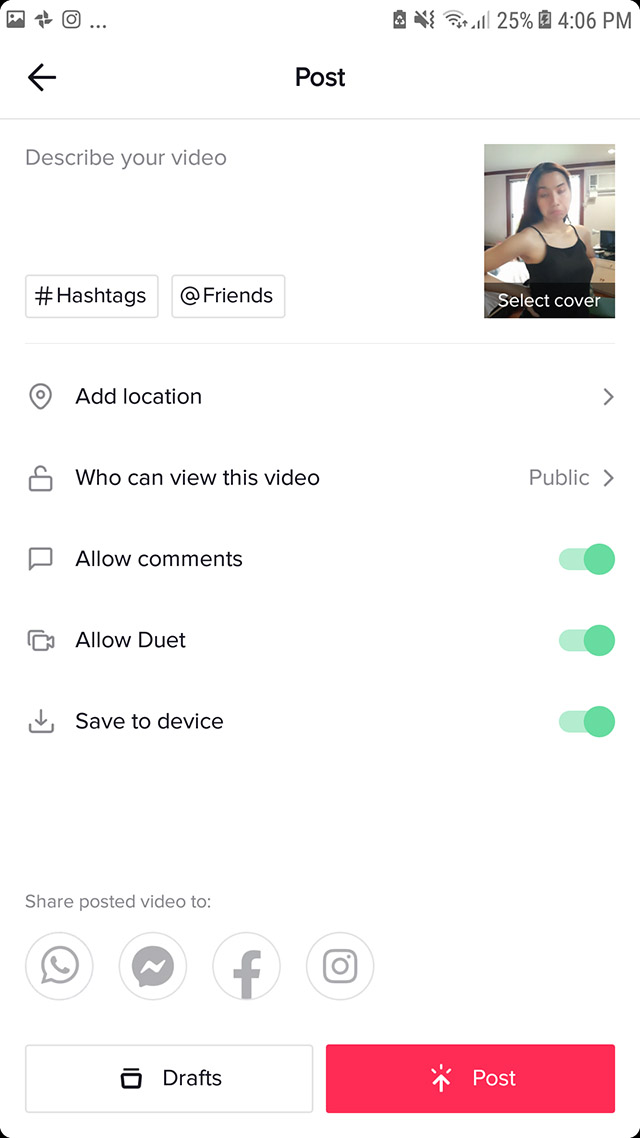
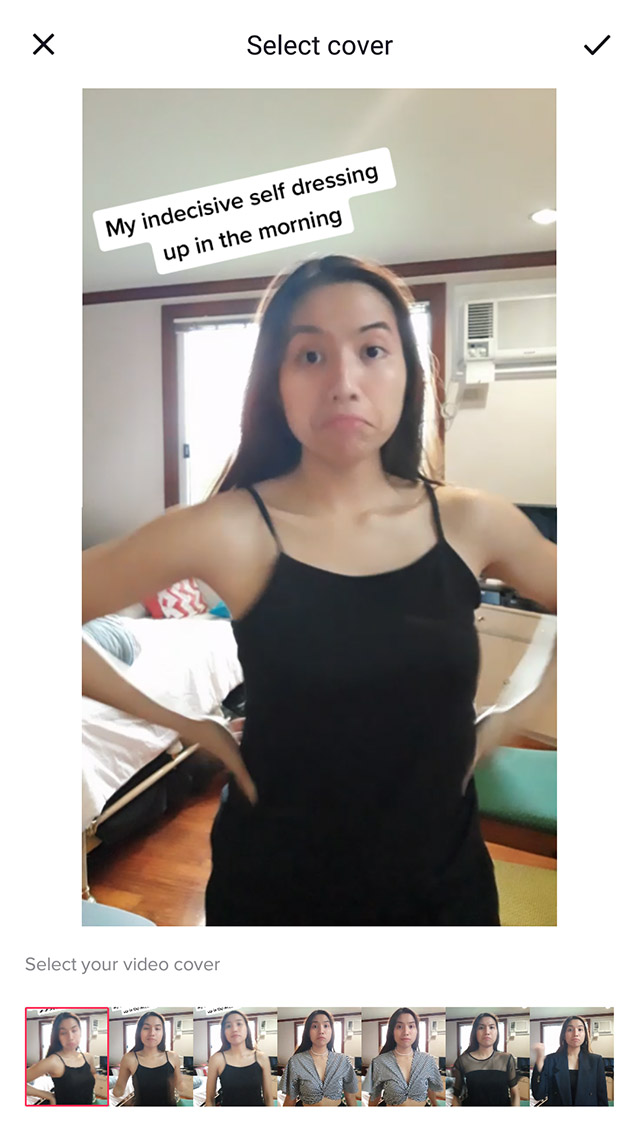
Click “Drafts” if you’re not ready to publish it just yet. But whatever you do, do not forget to change the thumbnail of your video. Click “select cover” and drag the red box to choose your desired frame.
Tip: Choose a frame that includes your video’s blurb, as seen below.
Accessing drafts
You can access your drafts on your profile, and the list even organizes them according to song and in chronological order with your most recent video on top.
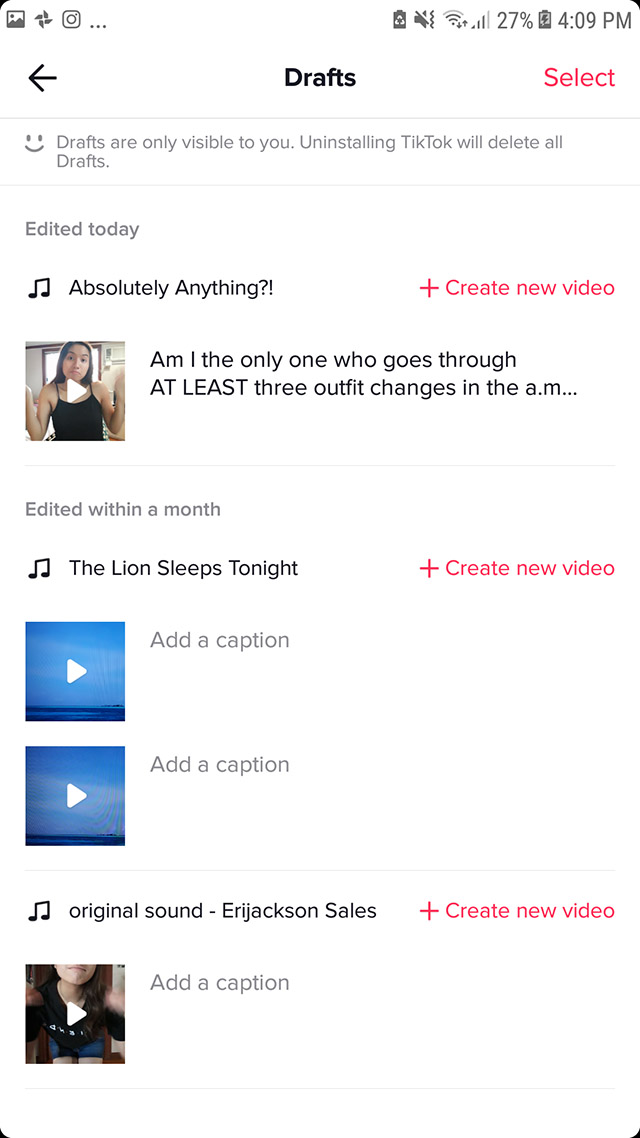
If you aren’t satisfied with a video you did for a specific song, you can make another one without deleting your previous work. Just hit “Create new video.”
Publishing your work
When you’ve finally finished your masterpiece, don’t forget to adjust the privacy settings before you hit “Post.”
You can set the video on private or public, and enable/disable comments, duets, as well as saving the video to your device.
Check out my final output below. I know I still need to polish my filming and editing but I'm slowly getting there! To the millennials reading this, you can—and you will—achieve TikTok perfection. We're all in this together.
@y_nrc Am I the only one who goes through AT LEAST three outfit changes in the A.M.??? ##fashion ##tiktokfashion ##style ##workfromhome
♬ original sound - Nicole Cruz
Hey, Preview readers! Follow us on Facebook, Instagram, YouTube, Tiktok, and Twitter to stay up to speed on all things trendy and creative. We’ll curate the most stylish feed for you!